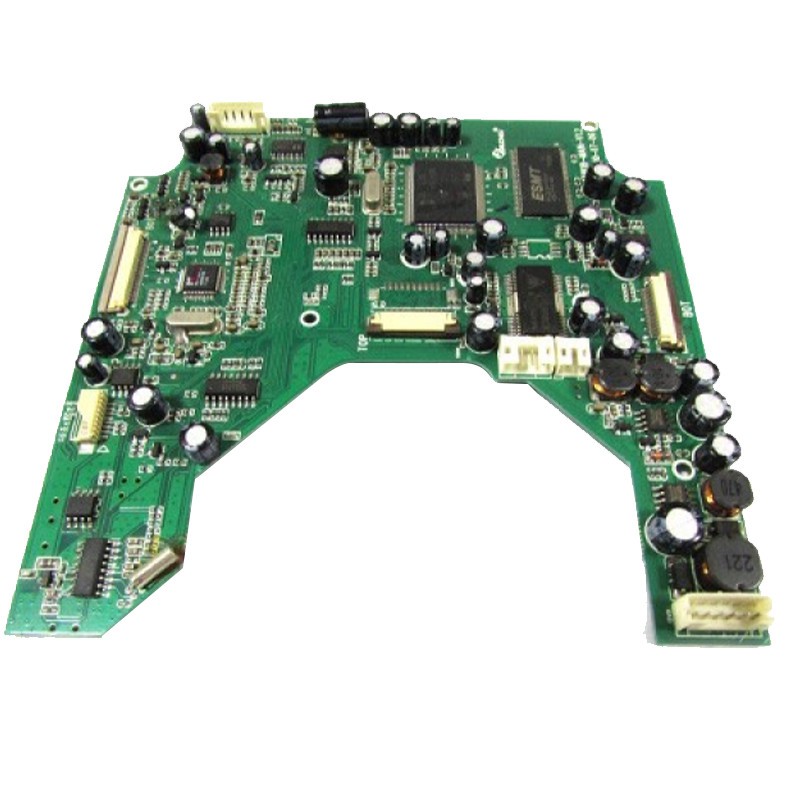
Hey there! As a supplier of Laptop PCBA Assembly, I've seen firsthand how important it is to ensure that every component on a laptop PCBA (Printed Circuit Board Assembly) works flawlessly. One crucial component that often flies under the radar is the infrared (IR) sensor. In this blog, I'll share some tips on how to test the infrared sensor in laptop PCBA assembly.
Why Test the Infrared Sensor?
First off, let's talk about why testing the IR sensor is a big deal. Infrared sensors in laptops are used for various functions, like proximity sensing, gesture control, and even facial recognition in some high - end models. A faulty IR sensor can lead to all sorts of problems, from inaccurate proximity detection to failed biometric authentication. So, making sure it's working right is essential for the overall performance and user experience of the laptop.
Tools You'll Need
Before we dive into the testing process, here's what you'll need:
- Infrared Sensor Tester: This is a specialized tool designed to send and receive IR signals. It can simulate different IR scenarios, allowing you to check the sensor's response.
- Oscilloscope: An oscilloscope is great for visualizing the electrical signals generated by the IR sensor. It helps you analyze the waveform, frequency, and amplitude of the signals.
- Multimeter: A multimeter is used to measure the voltage and resistance of the IR sensor. It can help you identify if there are any electrical issues with the sensor.
Pre - testing Checks
Before you start testing the IR sensor, it's a good idea to do some basic checks.


- Visual Inspection: Take a close look at the IR sensor on the PCBA. Check for any physical damage, like cracks, bent pins, or loose connections. If you spot any damage, the sensor might need to be replaced.
- Power Check: Make sure the PCBA is powered on and that the IR sensor is getting the correct voltage. You can use a multimeter to measure the voltage at the sensor's power pins. If the voltage is off, it could indicate a power supply problem on the PCBA.
Testing the Infrared Sensor
Now, let's get into the actual testing process.
Step 1: Functionality Test
The first step is to perform a basic functionality test. Use an IR sensor tester to send a test signal to the sensor. The tester will generate a specific infrared pattern, and the sensor should detect it and send a corresponding electrical signal back.
- If the sensor doesn't respond to the test signal, it could be a sign that the sensor is faulty.
- You can also try moving the tester closer and farther from the sensor to check if the sensor's sensitivity is within the normal range.
Step 2: Waveform Analysis
Connect the oscilloscope to the output pins of the IR sensor. When the sensor detects an IR signal, the oscilloscope will display the electrical waveform.
- Analyze the shape of the waveform. A normal waveform should have a consistent shape and amplitude. If the waveform is distorted or has abnormal spikes, it might indicate a problem with the sensor.
- Check the frequency of the waveform. The frequency should match the specifications of the IR sensor. If the frequency is off, the sensor might not be working correctly.
Step 3: Voltage and Resistance Measurement
Use a multimeter to measure the voltage across the IR sensor when it's powered on and detecting an IR signal. Compare the measured voltage with the sensor's datasheet specifications. If the voltage is significantly different, it could mean there's an issue with the sensor or the circuit it's connected to.
- Also, measure the resistance of the sensor. A faulty sensor might have an abnormal resistance value.
Troubleshooting
If you find that the IR sensor isn't working during testing, here are some things you can do:
- Check the Connections: Make sure all the connections between the sensor and the PCBA are secure. Loose connections can cause intermittent or no signal issues.
- Look for Interference: Infrared sensors can be affected by other sources of infrared light, like sunlight or nearby IR - emitting devices. Try testing the sensor in a controlled environment with minimal interference.
- Replace the Sensor: If all else fails, the sensor might be defective and need to be replaced. Make sure to use a compatible replacement sensor.
Other Related PCBA Assembly Services
We're not just experts in Laptop PCBA Assembly. We also offer top - notch Gaming Consoles PCBA Assembly and Electric Tool PCBA Boards services. Whether you're in the gaming industry or the power tool market, we've got you covered.
Let's Connect
If you're in the market for high - quality PCBA assembly services, whether it's for laptops or other consumer electronics, we'd love to hear from you. We have the expertise and the state - of - the - art equipment to ensure that your PCBA components, including infrared sensors, are tested and assembled to the highest standards. Reach out to us for a quote or to discuss your specific requirements.
References
- "Infrared Sensor Technology Handbook"
- "PCBA Assembly Best Practices Guide"
- Manufacturer's datasheets for infrared sensors used in laptops